Recently we needed a current floor plan to apply for a building permit and show the changes we planned to make. When we dug out the blueprints that came with the house, we were surprised to find they were older than we are.
The differences were startling: walls were in completely different locations, and our kitchen didn’t appear where it is now. The space we currently use for cooking had once been a back porch, and the room that’s now the master bedroom used to be the kitchen. A little embarrassed, we set out to find a quick, simple way to update the floor plan informally—for the permit and for our own records.
Many people rely on Google SketchUp for home improvement projects, but we had never taken the time to learn even the basics. To be honest, we felt intimidated: without architectural experience, we expected confusing terminology and complicated tools. Still, we decided it was time to learn a new skill.
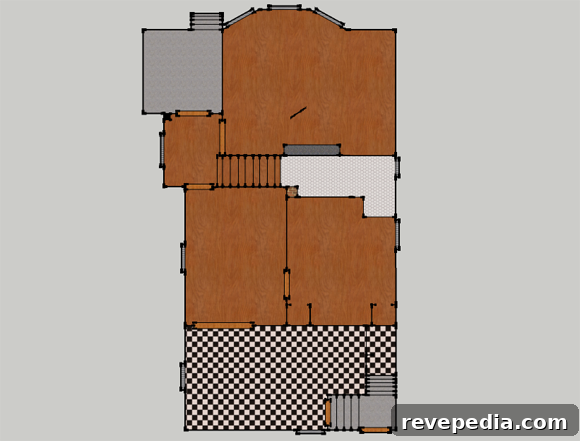
After measuring every wall, window, doorway, hallway, and closet, we sat down with SketchUp. We watched tutorial videos and consulted written step-by-step guides. Because we only needed a 2D plan for the permit, we focused on that, which saved significant time compared with creating a full 3D model. That said, it was enjoyable to experiment with textures and floor finishes to clarify different areas of the home.
As complete beginners it took most of an afternoon to get comfortable with SketchUp, but once we understood the basic tools we felt confident we could update the floor plan any time we needed. We’re also looking forward to exploring the 3D features in the future—arranging furniture and creating a virtual tour would be useful for planning and for keeping track of improvements over the years—though that will likely wait until after our holiday projects are finished.
If you’re considering SketchUp, here are a few practical tips we picked up along the way:
- Measure carefully before you start; precise measurements make drawing much faster.
- Begin with a simple 2D outline to establish walls and openings, then add details.
- Use layers or groups to separate floors, walls, and furniture so edits don’t affect unrelated elements.
- Watch short tutorials focused on the specific tool you need—one targeted video beats hours of browsing.
- Keep textures and color use minimal for permit drawings; use more detail when creating presentations or virtual tours.
We’d love to hear about your experiences with SketchUp—your favorite features, time-saving tricks, or resources you recommend. Share what’s worked for you in the comments below.