Our friend Nick loves music and wanted to bring that passion into the design of his new home. You can use the same idea to create a custom wall mural: pick an image you love and use the projection technique he used to transfer and paint it onto a wall.
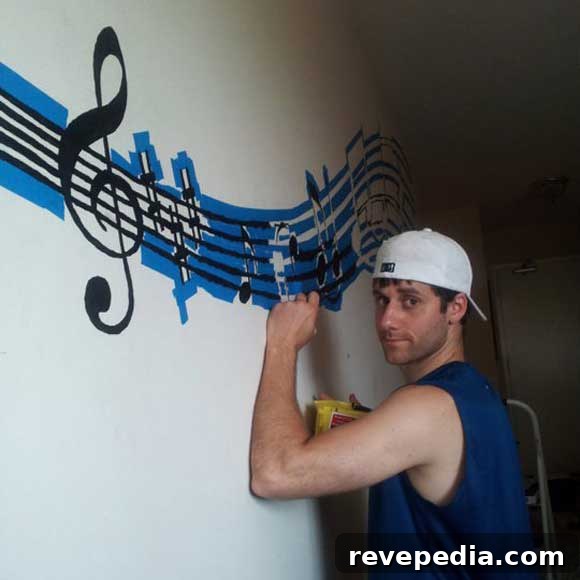
Below are clear, step-by-step instructions along with the tools and materials you’ll need to paint your own mural. The approach is flexible: you can follow every step for the neatest result, or simplify some parts if you prefer a more freehand style.
Tools & Materials
- Tape measure
- Computer
- Image-editing software (Photoshop or similar)
- Projector
- Pencil
- Ruler or straightedge
- Paint (colors of your choice)
- Painters tape
- Drop cloth
- Paint brushes — small artist brushes up to a 2″ brush (or larger, depending on your image)
- Paint cup or palette
Step-by-Step Instructions
- Find an image you want to use. You can choose artwork, a photograph, or design elements that match your space and taste.
- Measure the rectangular area of the wall where you want the mural to appear. Note the width and height so you can scale the artwork correctly.
- If you plan to use digital editing: open your image-editing software and create a new file sized to match the measured wall rectangle. This helps you visualize scale and composition before you project.
- Place your chosen image into that canvas and enlarge it to the size you want the mural to be. Position and crop as needed so the important parts fall where you want them on the wall.
- If you want to customize the artwork, make edits now. In Nick’s mural, for example, he added musical notes meaningful to him rather than keeping the original notation in the image.
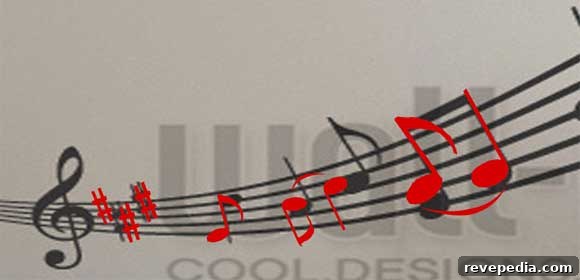
- Set up your projector and move it back until the projected image is as large as possible in the space you’ll be working. You’ll be projecting the artwork in sections, so check that the projector can slide left or right without changing image size. Open a full-screen test image on your computer to ensure the projection fills the display edges; some image viewers add margins that reduce usable projection area. Measure the dimensions of the projected image so you know the area covered by each projection.
- In your editing software, add guides or markers to divide the full artwork into sections the size of your projector’s maximum projection area. Allow at least an inch of overlap between adjacent sections so you can align them precisely on the wall.
- Export each marked section as its own image file. You should end up with multiple files that, when projected in sequence, reconstruct the full mural.

- Open the first section file on your computer and project it onto the wall where you want the mural to begin. Make sure the projected image is level; adjust the projector or use a level to confirm alignment.
- Trace the projected image onto the wall with a pencil. Use a ruler or straightedge for straight elements to keep lines clean and accurate.
- Open the next section file and move the projector so the new projection lines up with the overlap area of the previous tracing. Trace this section, and continue projecting and tracing each section until the entire mural is transferred to the wall.
- Apply painters tape along edges where you want perfectly clean, straight lines. Some curved or intricate areas can’t be taped; leave those for careful brushwork.
- Paint the mural. For areas that weren’t taped, start with a very small brush to paint crisp edges, then switch to larger brushes for filling in broader areas. Work from background to foreground or from light to dark colors depending on your image and paint opacity. Use a drop cloth to protect floors and furniture.
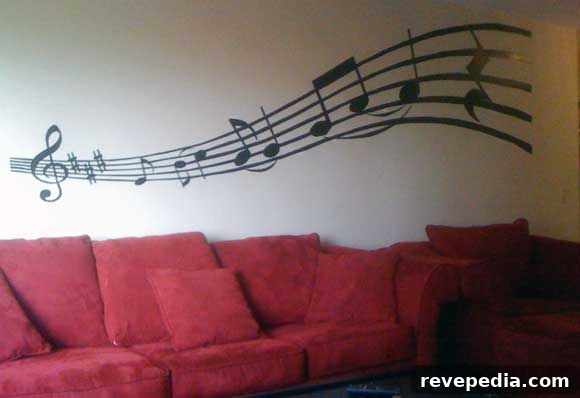
With patience and careful alignment, projecting the design in sections makes it surprisingly straightforward to reproduce detailed artwork on a large wall. Thanks to Nick for the inspiration—his finished mural brings personality and musical energy to the space and shows how a thoughtful approach turns a simple wall into a standout feature.