
Before You Put a VPN on Your Router, Decide Which Devices Should Use It
You bought a smart TV and discovered its app store lacks a compatible VPN client. The common advice—install the VPN on your router so every device on Wi‑Fi uses it—can feel like an easy fix.
That approach does solve real problems. Devices that can’t run a native VPN app, such as smart TVs and game consoles, can still have their traffic tunneled through the router. You also avoid fiddling with complex settings using a TV remote.
However, routing your entire home through a single VPN is not always the right choice.
Different devices use the network in different ways. Moving everything onto the same outbound route without planning can slow streaming, delay camera notifications, or conflict with a work laptop that already uses a corporate VPN. Treat a router‑level VPN as a routing decision rather than a universal security switch for the whole house.
A Router VPN Helps When a Device Cannot Run Its Own App
Installing a VPN app on a phone or computer is straightforward: install the client, sign in, pick a server, and connect. Many smart TVs, set‑top boxes, and consoles lack that option.
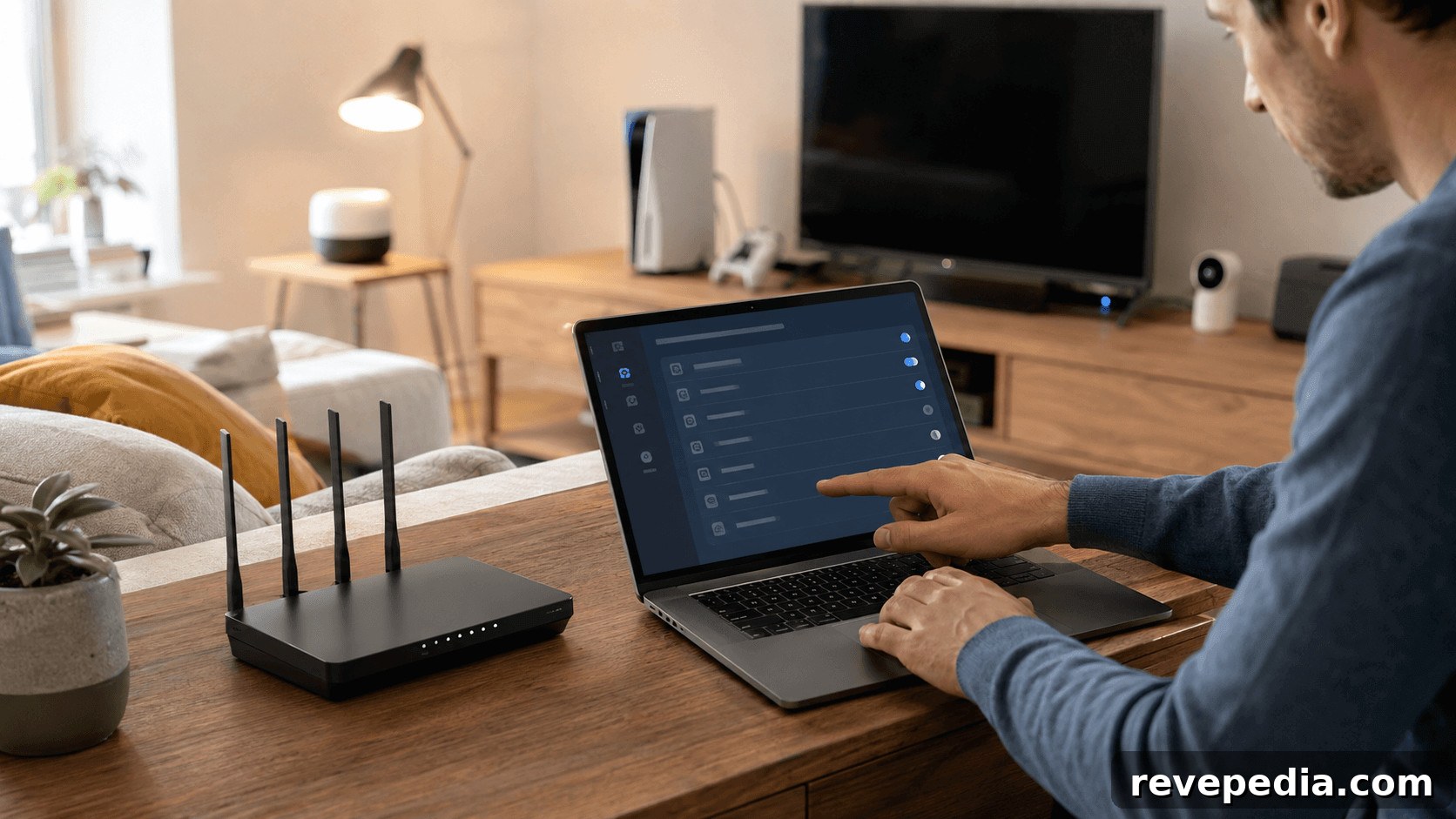
Configuring the router as a VPN client moves the tunnel to the network’s entry point. Devices send internet traffic to the router, which forwards selected traffic through an encrypted tunnel; the devices themselves do not need to know the tunnel exists.
Some modern consumer routers support assigning specific devices to a VPN profile. Certain ASUS and TP‑Link models, for example, let you route only chosen devices through the tunnel while leaving others on the ISP connection. That device‑level control is useful when you have a mix of TVs, cameras, work laptops, and gaming systems.
Because of that flexibility, a smart TV that cannot run a VPN is a common reason to consider a router‑level VPN. Conversely, a laptop that already uses a VPN app may be best left to manage its own connection.
A Router VPN Changes the Internet Route, Not the Home Network Layout
It’s easy to assume that putting a device on a VPN isolates it from your local network. In most homes, it does not.
A router VPN changes how selected devices reach the internet. It encrypts traffic between your router and the VPN server so websites and online services see the VPN server’s public IP address instead of your home IP. What the VPN usually does not change is how devices communicate inside your LAN.
For example, if a security camera and a work laptop already share the same local network, enabling the VPN typically leaves them on the same subnet. The VPN won’t automatically isolate the camera, update its firmware, or block local communications.
To control device interactions at home, use guest networks, separate IoT networks, client isolation, and firewall rules. These tools determine which devices can talk to each other on the LAN. The VPN performs a different task: it alters the outbound route for internet‑bound traffic after it leaves your router.
Think of this as two separate decisions: decide which devices should use the VPN for internet access, then decide whether cameras, smart home gear, computers, and phones should be separated inside your local network.
Group Devices by What They Need to Keep Working
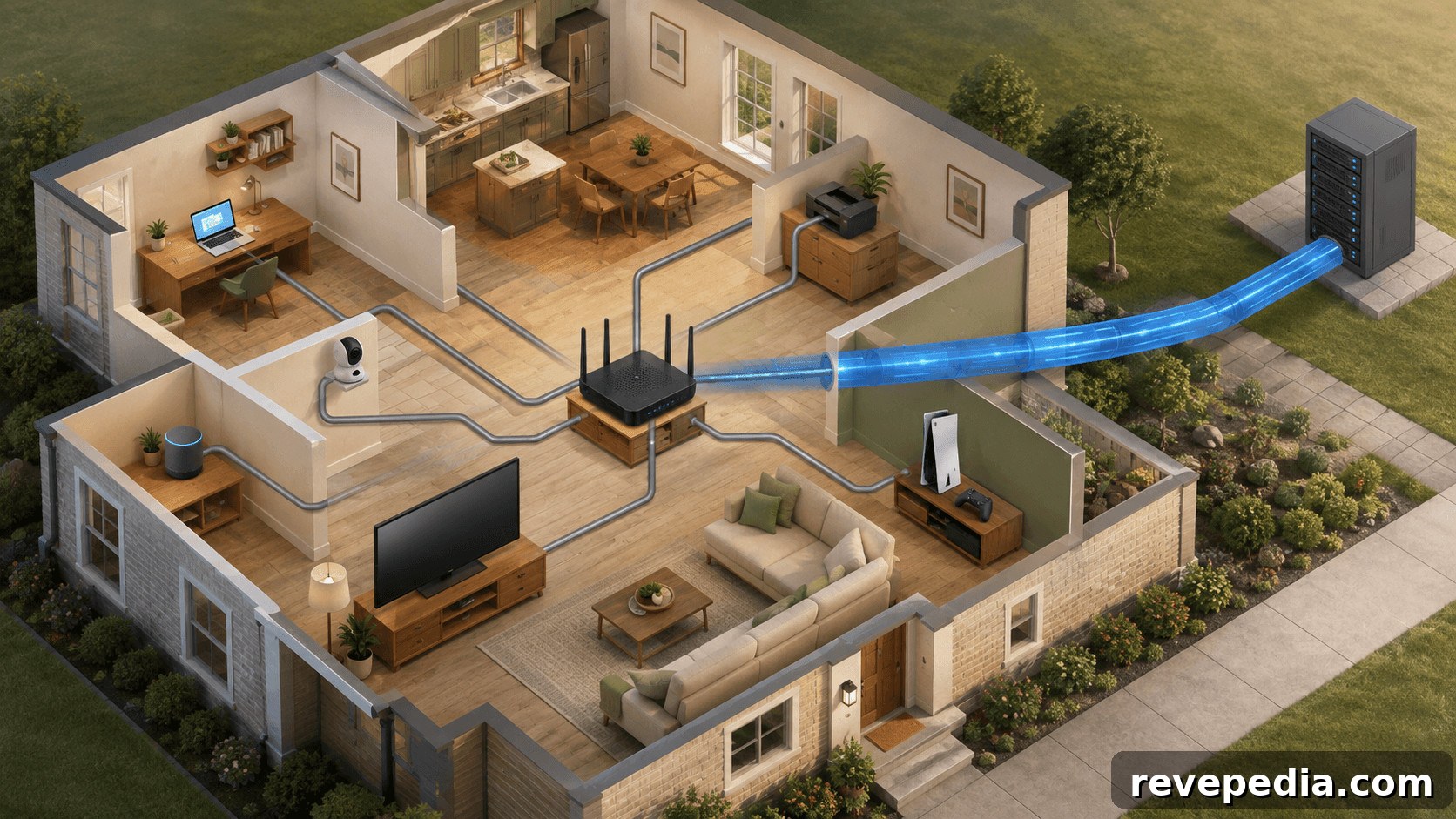
Before changing router settings, list every device you’re considering. For each device, identify what it gains from a different outbound route and what might stop working if you change it.
| Device | Possible reason to use the router VPN | What to test |
| Smart TV or streaming stick | Cannot install a suitable VPN app | Playback, sign‑in, and location‑sensitive services |
| Security camera or doorbell | Outbound route and public IP change | Live view, alerts, cloud uploads, and remote access |
| Game console | Cannot run a standard VPN client | Latency, NAT behavior, and account sign‑in |
| Printer or casting device | May be included by a whole‑home rule | Local discovery, printing, and casting |
| Work laptop | May already require a corporate network route | Company VPN, video calls, and internal access |
| Smart light or basic sensor | Sends limited traffic to a cloud service | App control, automations, and updates |
This exercise usually shows that devices benefit unevenly from a router VPN.
A smart TV is a sensible starting point: it’s low risk, easy to test, and often lacks a VPN app. If the setup causes problems, losing a streaming session is far less disruptive than losing security alerts or access to company systems.
Cameras require more caution. Changing their outbound route may have no obvious effect, or it may interfere with remote viewing, notifications, or cloud backups. Test one camera before changing the rest.
Printers typically operate primarily on the LAN, so a router VPN alone should not break local discovery. Still, firmware quirks, device assignment policies, or guest‑network settings can affect how devices find one another, so verify printing and casting behavior.
Treat work laptops separately. If a corporate VPN is already in use, layering a household VPN underneath can create double tunneling that leads to DNS, routing, or performance issues. Test this scenario independently and follow employer network policies.
Confirm That Your Router Can Act as a VPN Client
Finding a VPN section in the router’s admin panel is not sufficient. Some routers only offer a VPN server—useful for remote access back to your home—but that does not enable routing devices through an external VPN provider. To forward household traffic through a VPN service, the router must support VPN client functionality.
Before configuring anything, verify the exact router model, hardware revision, firmware version, and supported protocols. Use the full model number when checking the manufacturer’s documentation: similar model names can hide different hardware capabilities, and firmware updates may add or remove features.
Also confirm how the router applies a VPN profile. Depending on the model and firmware, it may:
- Send every connected device through a single tunnel
- Route only selected devices through the VPN
- Support multiple profiles for different device groups
- Offer no device‑level control once a tunnel is active
Device assignment is available on some routers but not all. If your home has mixed device types, the ability to select which devices use the VPN is often more valuable than extensive protocol support.
Create a rollback plan before making changes: save the current router configuration, take screenshots of key settings, and learn how to disable the VPN profile quickly. That prevents a frustrating evening of troubleshooting if the TV stops loading or a camera loses connectivity.
Test Daily Services Before Moving the Whole House
Don’t switch every device at once. Start with one or two low‑risk devices so you can spot problems without disrupting essential services.
A smart TV is a good test case. Before enabling the VPN, note its public IP, DNS resolution, basic speeds, and whether streaming services work normally. Repeat those checks after the VPN is active. A changed public IP indicates the VPN is in use for that device, but a single check doesn’t guarantee every connection uses the tunnel.
Then use the device normally. On a TV, open streaming apps, sign out and back in, and watch long enough to notice buffering or slow startups. For a camera or doorbell, check live view, motion alerts, cloud uploads, and remote access while away from your home Wi‑Fi. For printers and casting devices, confirm other devices can still discover and use them.
Try different VPN servers and repeat the tests that matter most. Behavior can vary by server due to location, load, or network policies.
Avoid judging the setup by speed tests alone. Different devices care about different metrics: TVs need consistent download bandwidth, cameras need steady upload, and consoles are sensitive to latency and NAT behavior.
One often‑overlooked test is to turn the VPN off and observe device behavior. Some routers drop internet access for devices assigned to the VPN until the tunnel reconnects. Others silently route them back over the ISP connection. Neither outcome is inherently correct—you may prefer a doorbell to stay online for alerts, or you may require strict VPN enforcement for privacy—but you should know the router’s behavior before relying on it.
Use harmless test traffic while validating the setup; there’s no need to access sensitive accounts just to check routing.
A Router VPN Does Not Replace Basic Home‑Network Security
A working VPN profile does not eliminate routine router security tasks.
Keep firmware up to date, use WPA2 or WPA3 encryption, set a unique administrator password, and ensure the router firewall is enabled. Disable remote management, WPS, and UPnP unless you specifically need them.
Guest and IoT networks remain important for separating lower‑trust devices from computers and phones. A VPN changes the internet route but does not fix vulnerable firmware or prevent allowed devices from communicating across the LAN.
Keep Whole‑Home Routing Only If It Solves a Real Problem
Whole‑home routing makes sense when the household needs the same internet exit for many devices and all critical services continue to work after testing. It simplifies coverage, especially for devices that cannot run their own VPN clients.
More often, selective device routing is the better solution. Let the smart TV and game console use the tunnel while keeping printers, thermostats, and company laptops on the regular ISP route.
Device‑level apps remain the clearest option for phones and computers: they let users control connection status and server choice without altering the rest of the home network. Their limitation is simply that they can’t help devices that cannot install the app.
The best setup is not the one that forces the most devices through a VPN. It’s the smallest configuration that solves the problem you actually have. Start with one device, thoroughly test its route and everyday functions, and expand only if the results earn your trust.